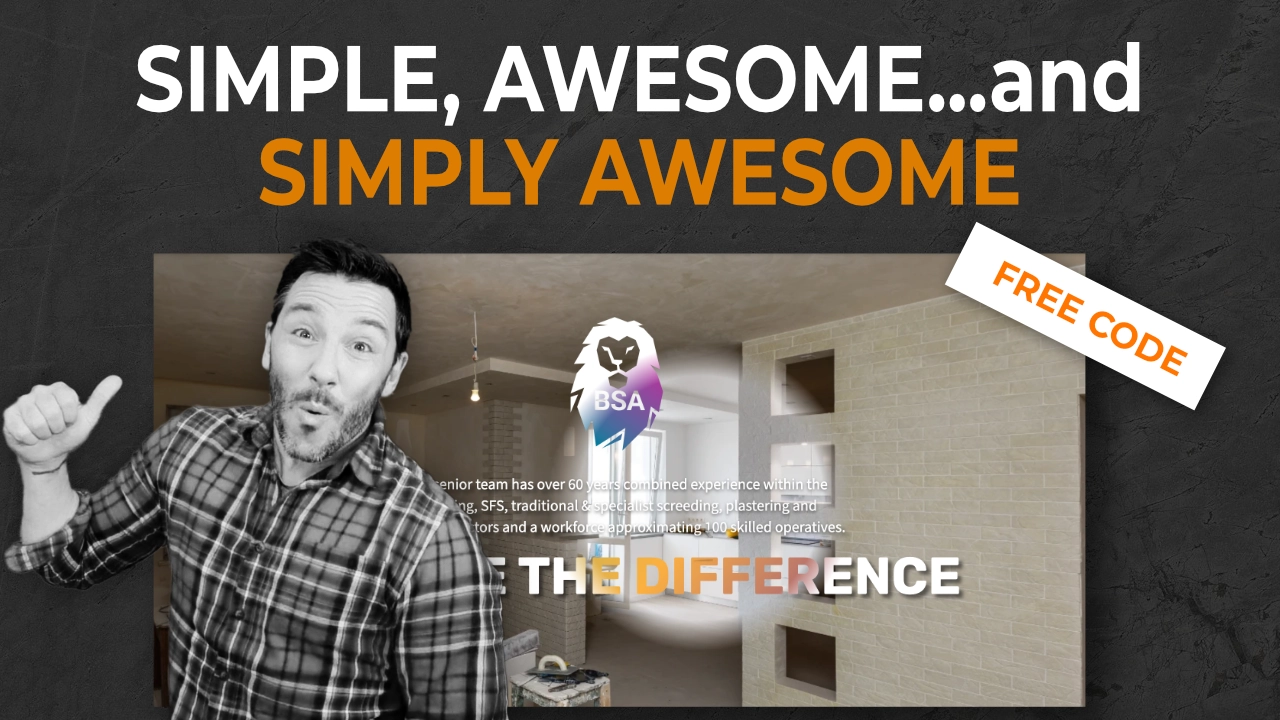

If you really want to step up your game with dynamic and scrolling elements on your page, there’s really no better effect than the image gallery background with scroll effect.
Adding layers and depth to your design while bringing extra images into the frame, with the scroll effect, shows off even more of your portfolio images.
An image gallery background is most often achieved with a static image, but if you follow the guidance in this video tutorial, you’ll really up the WOW factor with a scroll effect image gallery. Even better, you can apply shape dividers on the edges of the container to really add layers of design.
View the video tutorial to see how to structure the three containers that will make up background image gallery and also the colour overlay container in which you can add content.
The gallery consist of two containers within one larger ‘section’ container. One of these holds the 1 column image galleries in a row and the other is the overlay and content container.
The settings you need for each container are below.
This is the main container, which holds the other two in an equal heirarchy.
This container is used to hide the overflow of the galleries, set the height of the entire gallery, set a background colour for the gallery and add shape divider effects. You can experiment with each of these settings, although ‘overflow’ must be set to ‘hidden’.
Within container 1, you will need to place two other containers. The first of these will hold the image galleries themselves.
These are the essential settings for the Image Gallery Container.
Position: absolute
Top and Left Offsets: 0
Width: Full width
Width percentage: 120% or more
Items Direction: Horizontal row
Wrap: No wrap
Margin/Padding: 0 on all sides.
It is this container that you will use to add any skew or rotate effect to the galleries. Remember, you may need to play with the ‘OFFSET’ values to fix blank spots.
Within the Image Gallery Container, you will place the image galleries themselves.
These are the Elementor Pro Gallery, with some specific settings:
8-10 images
Layout: Grid
Columns: 1
Aspect ration: 1:1 (recommended)
Custom width: 20-30%
Scroll effect: alternating between Up and Down direction
Margin: on the ‘Up’ scrolls, you will need to add a negative Top Margin
NOTE: Lazy load adds a cool effect! Try it out!
The last container you need to create is alongside the Image Gallery Container. You will use this container to add the overlay colour effect. It will also contain any content for the section. The container needs to completely cover the containers below.
The essential settings are:
Position: absolute
Top and Left Offsets: 0
Width: Full width
Height: High enought to cover the below containers
Background: use this to create your overlay colours as you wish. Remember to adjust opacity in the colour palette.
The rest of this container can be set as is suitable for your content.
Do remember to optimise your images, for size, file size and format. Also, run through your tablet and mobile device views to ensure it looks good and functions well. It may be best to adjust or hide some elements altogether.
Enjoy!